Y2mate’s YouTube to MP4 converter turns a YouTube video into a normal MP4 file you can keep on your phone or computer. Paste the link, press Start, and pick 1080p, 720p, 480p or 360p. The MP4 has picture and sound together, so it plays everywhere without any extra step.
MP4 is the safest video format there is. Phones, tablets, smart TVs, car screens, game consoles, WhatsApp and every video editor open it without asking for a codec or a special player.
How to convert YouTube to MP4
- Open the video on YouTube and copy its link. In the app, tap Share and then Copy link. On a computer, copy the address bar.
- Paste the link into the box at the top of this page and press Start.
- Y2mate shows the title, thumbnail and every MP4 quality. Tap Download next to the one you want.
You can also type the video’s name instead of a link. Y2mate searches YouTube and lists the matches, so you can pick the right one and convert it in the same place.
Which MP4 quality should you choose?
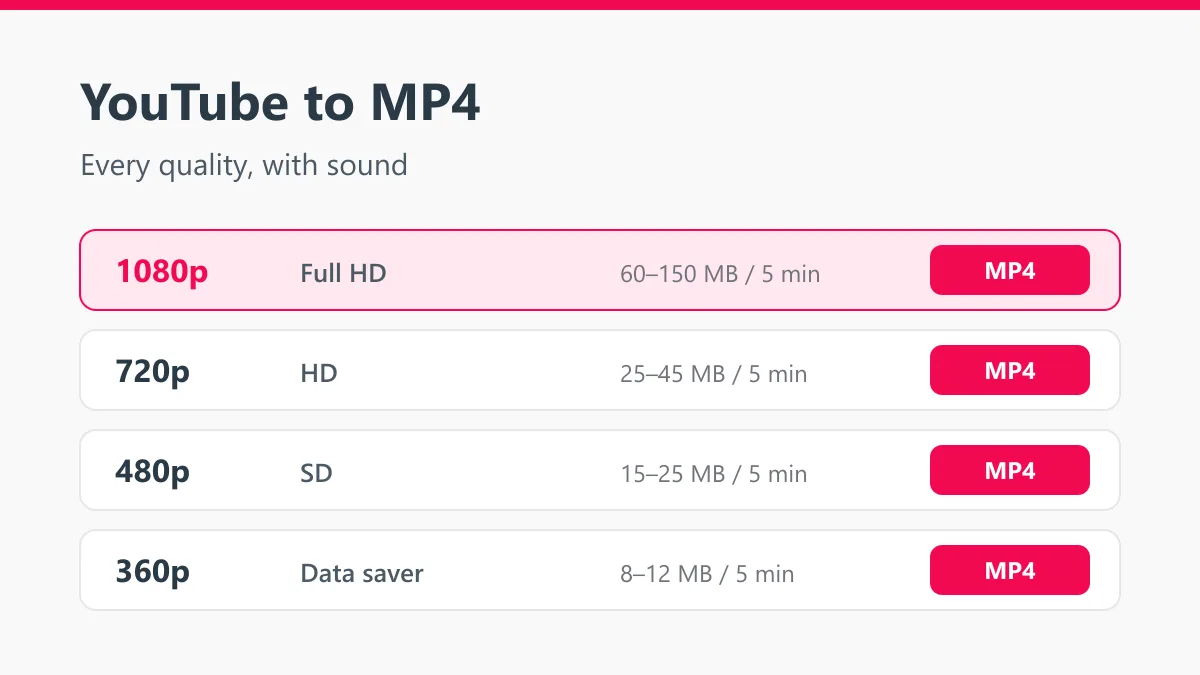
| Quality | Best for | Size for 5 minutes |
|---|---|---|
| 1080p Full HD | TV, monitor, editing, tutorials with small text | 60 – 150 MB |
| 720p HD | Phones and tablets, older TVs | 25 – 45 MB |
| 480p | Talks, podcasts with a still picture, slow internet | 15 – 25 MB |
| 360p | Low storage, mobile data | 8 – 12 MB |
If you are not sure, take 720p. It looks sharp on a phone, it is light enough to send, and older TVs and media players handle it without stuttering. Choose 1080p when you will watch on a big screen or edit the clip.
What happens when you press Start
For HD videos YouTube does not keep a single file. The picture is stored in one stream and the sound in another, and the YouTube player joins them while you watch. A converter has to do the same thing once: take the best picture for the quality you chose, take the audio, and pack both into one MP4.
Y2mate does this without re-encoding the picture, so nothing gets blurrier along the way. The video you download is the same H.264 video YouTube would stream to you, now saved in a single MP4 with AAC sound.
MP4 files that won’t play or have no sound
- No sound: test the file in VLC. If VLC plays the sound, the file is fine and the default player is the problem. Some uploads are also silent on YouTube itself.
- Stuttering: the device struggles with 1080p, especially at 60 fps. Download 720p instead.
- Only 360p offered: the original upload is small. Check the quality menu on YouTube; if it stops at 360p, that is the maximum for every downloader.
- Download stuck at 99%: phones can pause downloads when the screen locks. Keep the tab open until it finishes.
Where is my MP4 file?
- Android: Files app, then Download.
- iPhone and iPad: Files app, then Downloads. Tap the video, Share, then Save Video to move it to Photos.
- Windows and Mac: your Downloads folder.
MP4 or MP3?
If you only want the song, the podcast or the talk, video is a waste of space. Use the YouTube to MP3 converter instead and save an MP3, which is about 7 MB for a five-minute track. For vertical clips use the YouTube Shorts downloader, and for Facebook videos use the Facebook video downloader.
Use it fairly
Save your own videos, videos with a Creative Commons license and public domain clips. For other people’s work, ask the creator first and never re-upload it as your own. Y2mate is not affiliated with YouTube or Google.